
Challenge 2 - Creating a Dataflow Job using the Datastream to BigQuery Template
< Previous Challenge - Home - Next Challenge>
Introduction
Now that you have a Datastream stream configured to capture changes from the source and send them to GCS, it’s time to create a Dataflow job which will read from GCS and update BigQuery.
You can deploy the pre-built Datastream to BigQuery Dataflow streaming template to capture these changes and replicate them into BigQuery.
You can extend the functionality of this template by including User Defined Functions (UDFs). UDFs are functions written in JavaScript that are applied to each incoming record and can do operations such as enriching, filtering and transforming data.
Description
- Create a UDF file for processing the incoming data. The logic below just quickly masks the
PAYMENT_METHODcolumn.-
In the Cloud Shell session, copy and save the following code to a new file named
retail_transform.js:function process(inJson) { var obj = JSON.parse(inJson), includePubsubMessage = obj.data && obj.attributes, data = includePubsubMessage ? obj.data : obj; data.PAYMENT_METHOD = data.PAYMENT_METHOD.split(':')[0].concat("XXX"); data.ORACLE_SOURCE = data._metadata_schema.concat('.', data._metadata_table); return JSON.stringify(obj); } -
Create a new bucket to store the Javascript and upload the
retail_transform.jsto Cloud Storage using thegsutil cpcommand. Run:gsutil mb gs://js-${BUCKET_NAME} gsutil cp retail_transform.js gs://js-${BUCKET_NAME}/utils/retail_transform.js
-
- Create a Dataflow Job
-
Create a Dead Letter Queue (DLQ) bucket to be used by Dataflow. Run:
gsutil mb gs://dlq-${BUCKET_NAME} -
Create a service account for the Dataflow execution and assign the account the following roles: Dataflow Worker, Dataflow Admin, Pub/Sub Admin, BigQuery Data Editor,BigQuery Job User, and Datastream Admin
gcloud iam service-accounts create df-tutorial gcloud projects add-iam-policy-binding ${PROJECT_ID} --member="serviceAccount:df-tutorial@${PROJECT_ID}.iam.gserviceaccount.com" --role="roles/dataflow.admin" gcloud projects add-iam-policy-binding ${PROJECT_ID} --member="serviceAccount:df-tutorial@${PROJECT_ID}.iam.gserviceaccount.com" --role="roles/dataflow.worker" gcloud projects add-iam-policy-binding ${PROJECT_ID} --member="serviceAccount:df-tutorial@${PROJECT_ID}.iam.gserviceaccount.com" --role="roles/pubsub.admin" gcloud projects add-iam-policy-binding ${PROJECT_ID} --member="serviceAccount:df-tutorial@${PROJECT_ID}.iam.gserviceaccount.com" --role="roles/bigquery.dataEditor" gcloud projects add-iam-policy-binding ${PROJECT_ID} --member="serviceAccount:df-tutorial@${PROJECT_ID}.iam.gserviceaccount.com" --role="roles/bigquery.jobUser" gcloud projects add-iam-policy-binding ${PROJECT_ID} --member="serviceAccount:df-tutorial@${PROJECT_ID}.iam.gserviceaccount.com" --role="roles/datastream.admin" gcloud projects add-iam-policy-binding ${PROJECT_ID} --member="serviceAccount:df-tutorial@${PROJECT_ID}.iam.gserviceaccount.com" --role="roles/storage.admin" -
Run the following command:
gcloud compute firewall-rules create fw-allow-inter-dataflow-comm --action=allow --direction=ingress --network=GCP_NETWORK_NAME --target-tags=dataflow --source-tags=dataflow --priority=0 --rules tcp:12345-12346This command creates a firewall egress rule which lets Dataflow VMs connect, send and receive network traffic on TCP ports 12345 and 12346 when auto scaling is enabled.
-
Run the Dataflow job. Using Cloud Shell:
  cd ~/datastream-bqml-looker-tutorial/udf
  chmod +x run_dataflow.sh
  ./run_dataflow.sh
In the Google Cloud Console, find the Dataflow service and verify that a new streaming job has started.
NOTE: Look at the Use the Dataflow Monitoring Interface documentation in the Learning Resources section below.
-
Go back to the Cloud Shell. Run this command to start your Datastream stream:
gcloud datastream streams update oracle-cdc --location=us-central1 --state=RUNNING --update-mask=state -
Run the following command to list your stream status. After about 30 seconds, the oracle-cdc stream status should change to
RUNNING:gcloud datastream streams list --location=us-central1 -
Return to the Datastream console to validate the progress of the
ORDERStable backfill as shown here: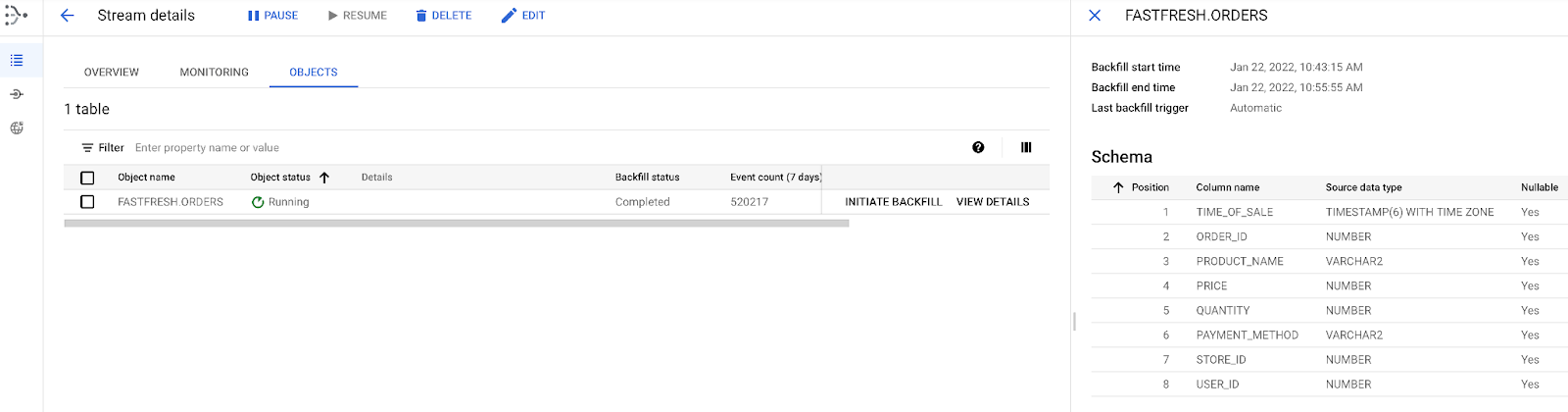
Because this task is an initial load, Datastream reads from the
ORDERSobject. It writes all records to the JSON files located in the Cloud Storage bucket that you specified during the stream creation. It will take about 10 minutes for the backfill task to complete.NOTE: Look at the Monitor a Stream documentation in the Learning Resources section below.
-
Success Criteria
- Buckets for the javascript (retail_transform.js) and the dead letter queues created
- retail_transform.js uploaded to gs://js-${BUCKET_NAME}/utils
- A service account created for the Dataflow job execution
- IAM roles assigned to the Dataflow service account
- Firewall rule created to allow Dataflow processes intercommunication
- Dataflow job running
- Datastream stream oracle-cdc running